How WordPress Plugins Break Website Accessibility (And How to Fix It)
Your WordPress site has thirty-seven plugins installed. You’re not entirely sure what twelve of them do. Three haven’t been updated in over a year. Two provide overlapping functionality. And when you run an accessibility scan, the results are a mess of heading structure errors, missing ARIA labels, and keyboard navigation problems.
I’ve seen this nightmare scenario before.
The promise of WordPress is extensibility. Need a contact form? Install a plugin. Want a slider? Install a plugin. Need better SEO? Install a plugin. The ecosystem makes this easy. Too easy.
Most business owners don’t realize that every plugin you add is a potential accessibility liability. Agencies should know better. When you stack fifteen, twenty, thirty plugins on top of each other, the compounding effect creates barriers that automated scans can’t fully detect and manual remediation can’t easily fix.
A Conservative Guideline: Twelve Plugins or Fewer
At SANscript, we recommend keeping your plugin count at twelve or fewer unless you have specialized functionality requirements that justify going beyond that number.
This is a conservative guideline. Industry research shows that well-maintained sites typically run between 15-25 plugins, with some enterprise sites handling 40+ successfully. However, in my experience working at agencies, I’ve yet to encounter sites running that many plugins while maintaining consistent accessibility compliance, performance standards, and proper documentation. This is why we run on the conservative side.
The constraint isn’t arbitrary. When you need to test how plugins interact with screen readers and keyboard navigation, audit for WCAG 2.1 AA compliance violations, document what each plugin does and why it’s necessary, and hand off sites to clients or new development teams with clear documentation, a smaller, carefully vetted plugin stack is significantly easier to manage.
Well-maintained WordPress sites can function with eight to twelve carefully selected plugins solving specific needs. The poorly maintained ones I’ve seen often have thirty or more, with overlapping functionality, abandoned plugins, and no clear rationale for why half of them are installed, even though research shows well-coded sites can handle more.
The difference isn’t just technical debt. It’s accessibility compliance risk, performance degradation, SEO penalties, and security vulnerabilities.
How Plugin Bloat Affects Performance and SEO
More plugins directly impacts your site’s performance and search engine rankings in measurable ways.
Each plugin adds code that WordPress must execute on every page load. More plugins mean more database queries, which increases server load and slows response times. Every plugin that loads JavaScript or CSS files adds HTTP requests. More requests mean longer page load times, especially on mobile connections.
Search engines measure Core Web Vitals: Largest Contentful Paint (LCP), Interaction to Next Paint (INP), and Time to First Byte (TTFB). Plugin bloat degrades all three metrics. Slow LCP signals poor user experience. High INP indicates JavaScript blocking interactions. Elevated TTFB shows server strain from excessive database queries.
Google explicitly uses page speed as a ranking factor. Sites that load slowly rank lower than faster competitors with similar content quality.
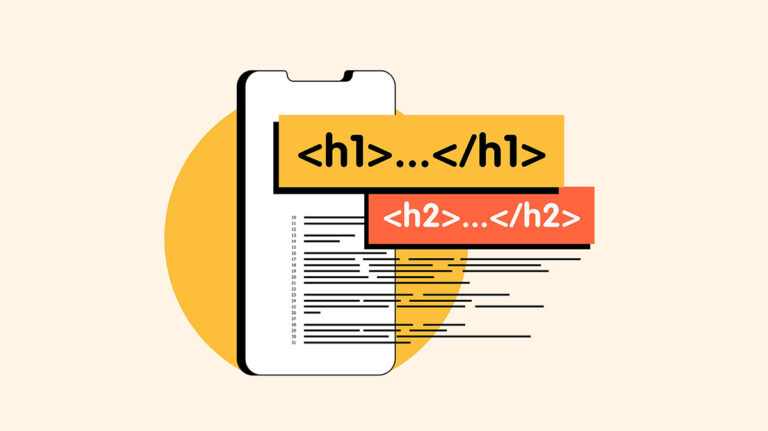
But the SEO impact goes beyond speed. Many plugins, particularly page builders, generate poor semantic HTML structure. When heading tags are used for visual styling instead of semantic meaning, search engines can’t accurately parse your content hierarchy. AI systems struggle to extract meaningful information for search results. Your site’s ability to appear in AI Overviews and generated answers is compromised. Page authority signals are diluted.
This affects both traditional search rankings and AI citation potential, which matters increasingly as search behavior shifts toward AI-powered platforms.
The Worst Offenders: Some Page Builders
If I had to identify the plugin category that creates the most accessibility problems, it’s some page builders. Specifically Elementor and Divi.
These tools promise visual, drag-and-drop site building without touching code. For agencies and businesses without development expertise, that sounds perfect. Build beautiful pages fast. No technical knowledge required.
The problem: these page builders generate HTML and CSS that prioritizes visual design over semantic structure. They create div soup. They implement ARIA incorrectly. They break heading hierarchy. They create keyboard traps. And because you’re building visually rather than with code, you often don’t realize you’re creating accessibility barriers until someone runs an audit.
Research from multiple accessibility consultants and organizations documents specific issues with both platforms. Elementor has documented problems with missing focus indicators, inaccessible popups, poor heading structure, and inadequate keyboard navigation support. A 2020 GitHub issue requesting WCAG compliance for Elementor remains open, with ongoing community discussion about accessibility gaps.
Divi has been described by accessibility experts as having “inherent flaws that make Divi websites inaccessible by default,” requiring significant manual intervention to achieve compliance.
In 2025, Elementor moved critical accessibility features (skip navigation links, focus indicators, color contrast controls, accessible heading hierarchy enforcement, and ARIA landmark roles) to paid tiers, creating what one accessibility consultant called “a genuine problem for site owners who relied on those features for legal compliance.”
Courts have cited these structural accessibility problems in ADA Title III lawsuits. The issues aren’t cosmetic. They’re fundamental.
I’ve seen Elementor sites with five H1 tags on a homepage, improper nesting of headings (H5 as the first header, followed by H2, then H3), and custom widgets that are completely inaccessible to keyboard navigation. The site looks great on a desktop monitor. It’s unusable for someone navigating with a screen reader or keyboard.
This isn’t a minor issue you can patch with an overlay plugin. This is fundamental structural HTML that would require rebuilding sections of the site to fix correctly.
SANscript’s preference: use Gutenberg itself or Kadence Blocks. Gutenberg is WordPress’s built-in block editor and has accessibility built into its core development standards. Kadence Blocks extends Gutenberg’s functionality while maintaining semantic HTML and proper ARIA implementation. The relationship between Gutenberg and Kadence is collaborative rather than competitive, which means Kadence actively works to stay aligned with WordPress accessibility standards rather than fighting against them.
Page builders like Elementor and Divi operate as separate ecosystems with their own development priorities. Accessibility often takes a back seat to visual features and rapid development.
Contact Forms and Missing Field Labels
Contact form plugins are another common problem area. The most frequent issue: missing or improperly associated labels.
A sighted user sees a contact form with placeholder text that says “Enter your email” and understands what the field is for. A screen reader user navigating that same form hears “edit text” with no context about what information the field expects. The placeholder text isn’t being announced because it’s not properly associated with the field as a label.
As of 2025, HubSpot’s embedded forms are particularly problematic in this area. Multiple accessibility issues have been documented in HubSpot’s own Community forums, including:
ARIA classes not being inserted in embedded forms (multiselect checkboxes and radio buttons reported as “unusable for anyone working with a screen reader”). Validation error messages not being announced by screen readers due to missing aria-describedby attributes. Required fields missing aria-required=”true” attributes, so blind users don’t know which fields are mandatory. Improper use of role=”alert” and labels not properly associated with inputs.
In one Community thread, a user reported that after raising accessibility issues via a support ticket, they were told “HubSpot forms were not ADA/WCAG compliant.” HubSpot staff officially responded in multiple threads stating: “HubSpot doesn’t currently meet WCAG standards. These are voluntary standards and compliance is not a legal requirement for HubSpot.”
Accessibility experts from Funka Nu AB, a world-renowned accessibility company, documented extensive technical issues with HubSpot’s chat widget in 2022, including missing aria-live announcements, wrong ARIA attribute values, and complete absence of keyboard navigation.
While HubSpot isn’t a WordPress plugin specifically, many B2B sites embed HubSpot forms, and those forms introduce accessibility barriers that the site owner often doesn’t realize exist until an audit.
For WordPress-specific contact forms, SANscript uses Gravity Forms. Since version 2.5, Gravity Forms has been built to meet WCAG 2.1 AA compliance standards. The plugin includes proper ARIA labels, keyboard navigation, screen reader compatibility, and focus management by default. Gravity Forms provides accessibility warnings when you configure fields in ways that could create barriers, and their documentation includes comprehensive accessibility guidelines.
Independent testing by accessibility consultants shows Gravity Forms scoring zero errors in WAVE accessibility testing. The plugin was developed with input from accessibility consultant Rian Rietveld, who helped create their accessibility roadmap and provided training for their design and product teams.
Contact Form 7 can be made accessible, but it requires manual configuration and technical knowledge most site owners don’t have. Gravity Forms handles accessibility at the code level without requiring the site owner to understand WCAG success criteria.
Sliders: Proceed with Caution
Sliders and carousels get blamed for accessibility problems frequently. Sometimes that’s deserved. Sometimes it’s not.
The main accessibility issue with sliders is keyboard traps. A keyboard trap occurs when a user navigating with Tab key gets stuck in a slider and can’t escape to continue navigating the page. This happens when the slider plugin doesn’t properly implement keyboard controls or focus management.
But more often, slider accessibility problems are designer or user error rather than plugin failure. Auto-playing sliders that give users no time to read content before advancing. Sliders with no pause button. Sliders with tiny navigation dots that don’t meet minimum touch target size requirements. Sliders with insufficient color contrast between text and background images.
These are configuration choices, not inherent plugin limitations.
There’s another consideration: sliders can be problematic for people with low vision who rely partially on assistive technology and partially on their sight. The automatic advancement of content can be disorienting, and the small controls can be difficult to use.
My recommendation: avoid sliders altogether unless they’re absolutely needed for specific functionality. If you must use sliders, ensure they’re not creating keyboard traps (test by tabbing through the entire page), provide visible pause and play controls, give users adequate time to consume content before auto-advancing, and test text contrast against all background images used in slides.
What Vetting Actually Looks Like
Before installing any plugin on a client site, SANscript runs through a consistent vetting process.
Is it in the WordPress.org plugin repository? Plugins in the official repository go through a baseline review process. That’s not a guarantee of quality or accessibility, but it eliminates the worst offenders.
Is it actively maintained? Check the last update date and release history. A plugin that hasn’t been updated in over a year is a red flag. WordPress core updates regularly. Plugins that don’t keep pace with core updates create security vulnerabilities and compatibility issues.
What’s its rating and review pattern? Look at overall rating, but more importantly, read recent reviews. Specific complaints about accessibility, conflicts with other plugins, or poor support responses tell you more than a star rating.
Are there alternatives? Research two or three options with similar functionality, compare their maintenance records, review their code quality when possible, and talk to the development teams when feasible.
This process takes more time than clicking “Install Now” on the first search result. It also prevents the scenario where you’re debugging plugin conflicts at 10 PM on a Friday because an automated update broke the site.
How to Test Plugins for Accessibility
Testing plugins for accessibility requires more than running automated scans. You need to actually use assistive technologies the way your users would.
For screen reader testing, install NVDA (free, Windows) or use VoiceOver (built-in, Mac). JAWS is the gold standard for professional testing, but it’s expensive and NVDA covers most use cases for plugin testing.
Navigate your form or page using only the Tab key. No mouse. Can you reach every interactive element? Does focus move in a logical order? Can you see where focus is at all times? Are there any elements you can’t escape from (keyboard traps)?
Turn on your screen reader and navigate the page. Are form fields properly labeled? Do you hear meaningful descriptions, not just “edit text” or “button”? Are error messages announced? Do dynamic content changes get announced?
For forms specifically, try to submit with errors. Are error messages associated with the correct fields? Can you navigate directly to the problem? Does the screen reader announce what’s wrong and how to fix it?
This manual testing catches problems automated tools miss. A plugin might pass WAVE or axe scans but still be unusable for actual screen reader users because the ARIA implementation is technically correct but contextually wrong.
Set aside 15-20 minutes for this testing before deploying any new plugin to a client site. It’s faster than remediating accessibility violations discovered during a compliance audit.
If you’re not comfortable doing any of this yourself, reach out to us. SANscript can handle plugin vetting and accessibility testing as part of our website audit services.
The Audit Process for Inherited Sites
When SANscript takes over a WordPress site from another agency or internal team, the plugin audit is one of our first tasks.
We start by identifying what’s actually being used. WordPress lets you deactivate plugins without deleting them, so inherited sites often have plugins that were deactivated months or years ago but never removed. These create security vulnerabilities even when inactive.
We check update history and maintenance status. Plugins that haven’t been updated in eighteen months or longer get flagged for removal or replacement. Even if they’re not currently causing problems, they will eventually create compatibility issues or security risks.
We look for overlapping functionality. Multiple SEO plugins. Three different contact form plugins. Two caching plugins. This happens when different developers or agencies work on a site over time, each adding their preferred tools without removing what came before.
We document what’s needed versus what’s installed. Sometimes a site has a legitimate need for fifteen plugins because it’s running complex e-commerce functionality, membership systems, and custom integrations. More often, the site could accomplish everything it needs with eight well-chosen plugins and some custom code.
The cleanup process: deactivate everything that’s not actively used, remove abandoned or outdated plugins, find better alternatives for plugins with accessibility or performance issues, consolidate overlapping functionality, and document why each remaining plugin is necessary and what it’s configured to do.
Why Documentation Matters
One of the biggest problems with inherited WordPress sites: no documentation about plugin choices, configurations, or dependencies.
The previous agency installed twenty-three plugins. Some are clearly essential (WooCommerce for the e-commerce functionality, an SEO plugin for search optimization). Others are mysterious. What does this social sharing plugin do that the theme doesn’t already handle? Why are there two different backup plugins installed? Is this analytics plugin still connected to an active account?
Without documentation, you’re stuck reverse-engineering decisions or leaving plugins in place “just in case” because you’re not sure what will break if you remove them.
Good WordPress development includes documenting the plugin stack: what each plugin does, why it was chosen over alternatives, what it’s configured to accomplish, whether it has dependencies on other plugins or the theme, and what accessibility considerations were evaluated during installation.
You can even include this documentation directly in the WordPress dashboard using dashboard widgets or admin notices, making it easily accessible for anyone managing the site.
This documentation makes cleanup easier when you need to optimize the site. It makes troubleshooting faster when conflicts occur. And it makes handing off the site to a new team or client feasible with clear operational knowledge.
The Compounding Effect
Plugin accessibility issues compound.
A single plugin with improper ARIA implementation might create one or two WCAG violations. Add a page builder with heading structure problems, a contact form with missing labels, and a slider with keyboard trap potential, and you’re not dealing with three separate issues. You’re dealing with interactions between those issues that create additional barriers.
The page builder generates a section with improper heading hierarchy. The contact form plugin sits inside that section and inherits some of the structural problems. The slider plugin loads its own JavaScript that conflicts with the page builder’s focus management. Now you have heading structure violations, form accessibility problems, and JavaScript errors all in the same area of the page.
Fixing one plugin’s issues doesn’t necessarily fix the others. You’re playing whack-a-mole with accessibility barriers, and every fix creates potential for new conflicts.
This is why limiting your plugin count matters. Not because twelve is a magic number, but because intentional restraint in what you install makes testing and remediation manageable.
What Good WordPress Development Looks Like
WordPress done correctly means:
Eight to twelve well-maintained, thoroughly vetted plugins solving specific needs that can’t be addressed more efficiently with theme functionality or custom code.
Clear documentation explaining what each plugin does, why it was chosen, and how it’s configured. This documentation can live directly in the WordPress dashboard for easy reference.
Staging environment workflow where all plugin installations and updates are tested before being deployed to production.
Regular maintenance schedule that includes reviewing plugin update logs, testing accessibility after updates, and periodically auditing whether installed plugins are still necessary.
Accessibility-first development where plugins are chosen and configured with WCAG compliance as a requirement, not an afterthought.
This isn’t more complex than the alternative. It’s more professional.
The alternative (installing whatever plugins seem useful at the time, never removing anything, never documenting decisions, updating directly on production and hoping nothing breaks) creates complexity, technical debt, accessibility barriers, security vulnerabilities, SEO penalties, and performance degradation.
What This Means for Your Site
If you’re managing a WordPress site for your business, here’s what you should check:
How many plugins are currently installed? If the number is above fifteen and you can’t immediately explain what each one does and why it’s necessary, you have cleanup work to do.
When were your plugins last updated? Log into WordPress admin, go to the Plugins page, and sort by “Last Updated.” Anything that hasn’t been updated in over a year should be evaluated for removal or replacement.
Have you run an accessibility audit? Not an automated scan that gives you a pass/fail score, but an actual manual audit that tests with screen readers, keyboard navigation, and checks semantic HTML structure. If not, you don’t actually know whether your plugin stack is creating accessibility barriers.
Do you have documentation about why each plugin was installed? If you’re dependent on a previous developer or agency to explain plugin choices, you don’t have adequate documentation.
Can you export your site and switch agencies without starting over? WordPress portability is one of its major advantages, but plugin dependencies can eliminate that advantage if you’re locked into proprietary page builders or tools that don’t export cleanly.
The Real Cost
The guideline to keep your plugin count manageable isn’t about minimalism for its own sake. It’s about maintaining a WordPress site that actually works for all users, that you can audit for accessibility compliance, that performs well, that stays secure, that ranks in search engines, and that you can hand off to new teams without rebuilding.
Plugin bloat creates the opposite: sites that are slow, difficult to audit, full of accessibility barriers, vulnerable to security issues, penalized by search engines, and locked into specific developers or agencies who understand the accumulated complexity.
You can’t overlay your way out of structural HTML problems created by poorly chosen plugins. You can’t automate compliance when your plugin stack creates compounding accessibility barriers. And you can’t maintain professional standards when your WordPress site has thirty-seven plugins and no one can explain why half of them are installed.
WordPress done right is powerful, flexible, and accessible. WordPress done wrong is the nightmare scenario people warn about when they say “WordPress is too complex.”
The difference isn’t the platform. It’s the plugin stack and the discipline around managing it.
Need help auditing your WordPress site for accessibility compliance? SANscript specializes in WCAG 2.1 AA audits, SEO and WordPress development. We’ll identify which plugins are creating barriers, provide actionable remediation guidance, and help you build a maintainable, accessible site. View our pricing and services.
Additional Sources
Accolades.dev & AspectSoft.gr. (2025). “WordPress Best Practices for 2026.” https://www.webdigestpro.com/wordpress-best-practices-for-2026/
Elementor GitHub. (2020). “Accessibility: Complete WCAG compliance in all Elementor widgets and theme builder.” https://github.com/elementor/elementor/issues/11779
Gravity Forms. (2025). “Accessibility Guide for Developers.” https://docs.gravityforms.com/accessibility-for-developers/
Gravity Forms. (2025). “Gravity Forms Commitment to Accessibility.” https://docs.gravityforms.com/gravity-forms-commitment-to-accessibility/
HubSpot Community. (2022). “Accessibility failures with form validation.” https://community.hubspot.com/t5/HubSpot-Ideas/Accessibility-failures-with-form-validation/idi-p/696655
HubSpot Community. (2022). “Accessibility: Form validation alerts not readable by screen reader.” https://community.hubspot.com/t5/HubSpot-Ideas/Accessibility-Form-validation-alerts-not-readable-by-screen/idi-p/447881
HubSpot Community. (2022). “Chat module’s accessibility problems.” https://community.hubspot.com/t5/Tips-Tricks-Best-Practices/Chat-module-s-accessibility-problems/td-p/634868
HubSpot Community. (2025). “HubSpot Forms NOT ADA Compliant – Easy Fix.” https://community.hubspot.com/t5/HubSpot-Ideas/HubSpot-Forms-NOT-ADA-Compliant-Easy-Fix/idi-p/813155
HubSpot Community. (2025). “Screen Reader Accessible Forms.” https://community.hubspot.com/t5/Lead-Capture-Tools/Screen-Reader-Accessible-Forms/m-p/945524
Jetpack. (2025). “How Many WordPress Plugins Are Too Many?” https://jetpack.com/resources/how-many-wordpress-plugins-are-too-many/
Ryan, Ben. (2025). “Elementor Accessibility Compliance: The Paywall Problem.” https://benryan.com.au/blog/elementor-accessibility-monetization-eu-compliance
WP Tavern. (2024). “Certain WP Form Plugins Make Accessibility Easy.” https://wptavern.com/certain-wp-form-plugins-make-accessibility-easy